Convert a PowerPoint table to editable shapes with XKey
Choose between a native table, editable shapes and an Excel link—then update the text in an existing layout.

To move or format individual table cells freely, select a native PowerPoint table and run XKey's Table to boxes… command. The result is editable slide objects, not a native table or a live Excel link. Keep the original table or workbook if you will need it later.
This guide is for XKey in Windows desktop PowerPoint. We make XKey. The screenshots below are existing captures of its Japanese interface; labels and appearance may differ in your version. Check the current installation requirements before downloading.
Choose what you need to edit later
| What you need | Choose |
|---|---|
| Edit rows, columns and cells together | A native PowerPoint table. Choose destination styling or keep the Excel source formatting when pasting. |
| Move or format individual cells as slide objects | Convert a native table to shapes with XKey. Native table behavior is no longer available in the converted objects. |
| Retain an Excel worksheet or update from a saved workbook | An embedded or linked Excel object. A link and an embedded copy have different update behavior. |
Copy the cells in Excel, then use PowerPoint's paste options for the representation you need. Pasting a native table does not automatically create a live workbook link. See Microsoft's Insert and update Excel data in PowerPoint for the built-in choices.
Convert the PowerPoint table into shapes
- Paste the Excel range as a PowerPoint table, then select the table.
- Open XKey's Table to boxes… command in its table tools.
- Choose the available header and line options for your layout, then apply the conversion.
- Check the resulting text, borders and positions against the original. Save a copy of the original before making further changes.


Use XKey Slide Tools to align or resize the selected objects. Conversion gives you layout freedom; it does not promise to preserve every table-formatting detail or keep the data synchronized with Excel.
Paste Excel values into selected text boxes
For a layout already built from text boxes, XKey can distribute copied cells across selected shapes. This requires Enhanced Keyboard Navigation in XKey settings; ordinary PowerPoint paste does not perform this XKey workflow.
- Enable Enhanced Keyboard Navigation in XKey settings.
- Copy a rectangular range from Excel.
- Select the destination text boxes as objects. Do not leave the text cursor inside one box.
- Press Ctrl + V, then check the values and their order.
XKey reads tab-separated cells in row order and maps them to selected shapes in visual rows, from top to bottom and left to right within each row. Use a regular grid and match the destination count to the number of cells. Mismatched counts do not create a new table layout for you. Check irregular arrangements rather than assuming they follow the order in which you clicked the boxes.
A small example you can check
The following six values are illustrative sample data, not a customer result or a measured product test. Copy a two-row, three-column range with these values and select six destination boxes arranged in two clear rows:
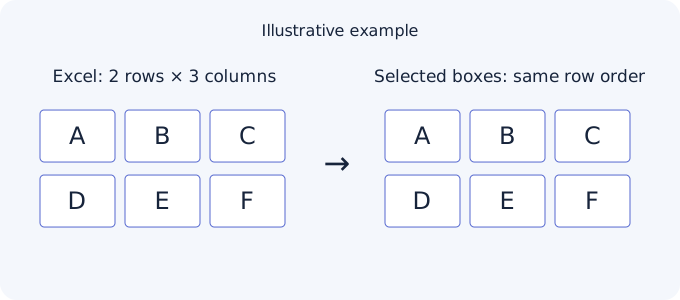
After pasting, verify A–B–C across the upper row and D–E–F across the lower row. If the order is wrong, undo, check the shape selection and arrangement, and try a smaller selection. This is a manual update of selected objects; it does not generate a presentation or establish a workbook link.

Reuse the arrangement on another slide
For content already arranged as text boxes, Copy as cells copies their text in a cell-like format. Select the matching destination arrangement and use the same enhanced paste workflow to replace its values. Keep your source data separately and verify the result before presenting.

Try the workflow on your own slide
Start with one small table and keep an unchanged copy for comparison. Download XKey for Windows PowerPoint, follow the installation guide, and try the conversion on that copy. If you repeat the task, assign a custom PowerPoint shortcut to the relevant command.