Build consistent PowerPoint slides with Slide Master
Set up layouts, text styles and reusable defaults before you start your next deck.
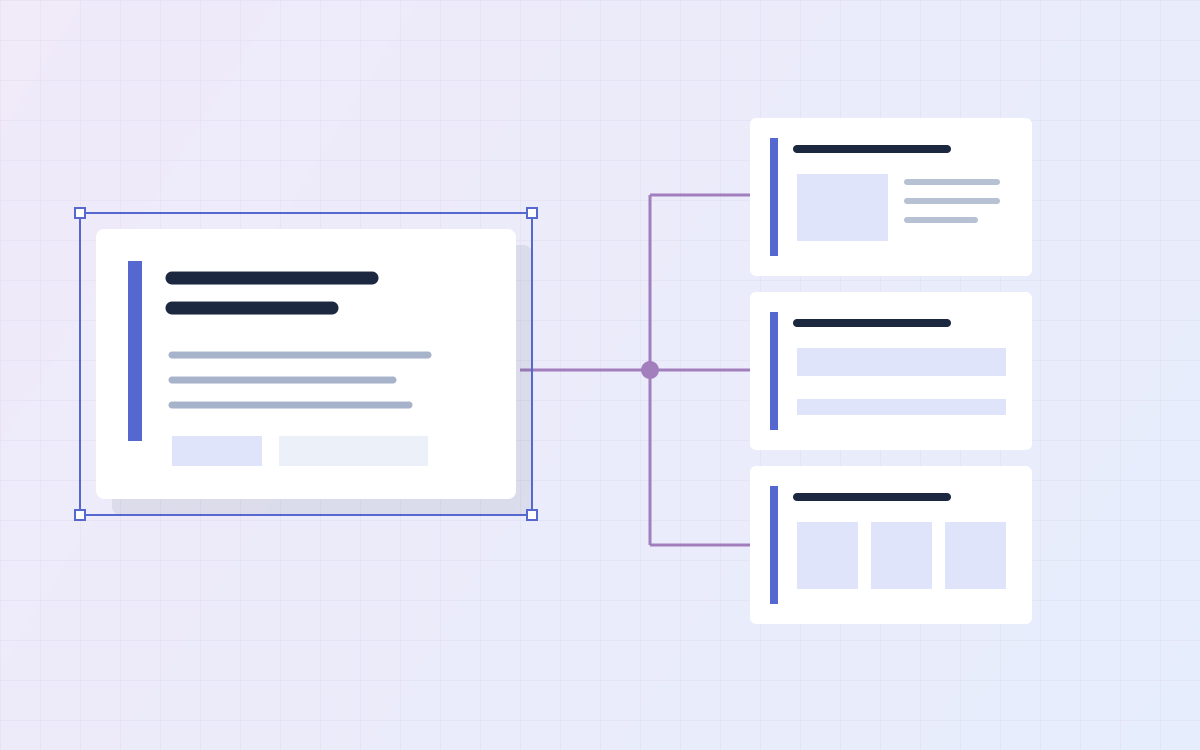
A presentation is easier to maintain when its slides share a small set of deliberate defaults. PowerPoint's Slide Master is where you define the layouts and text styles that your slides inherit, instead of formatting every new slide from scratch.
This guide covers master layouts, useful object defaults and saving a reusable template. Screenshots show the Japanese PowerPoint interface; the steps below use English menu names.
Start with the master and its layouts
Open View > Slide Master. The large thumbnail represents the master; the layouts underneath it define different arrangements of placeholders. Edit the master for shared styling, then adjust individual layouts where a slide type needs a different arrangement.

Choose a few layouts you actually use: a title slide, a title-and-content slide, a section divider and a mostly blank layout. A small, useful set is easier to maintain than many nearly identical layouts.
Set text styles before filling the slides
Define the font, size, spacing and bullet hierarchy in the master placeholders. Use sizes that remain readable in your presentation setting; a dense handout and a projected presentation need different choices.

Check the placeholder's internal margins, vertical alignment and text wrapping as well. These settings affect how much text fits and whether headings line up consistently.

Set a simple bullet hierarchy and check each level with realistic sample text. Avoid treating every line as a separate formatting decision.

Theme fonts and colors help keep the deck consistent. Pick readable text/background combinations and use accent colors deliberately. Match your organization's template where one is provided.

Make room for footers and recurring content
Place recurring elements where they belong in the layouts: slide numbers, source notes, section labels or a logo. Check that the space left for the main content still works on a crowded slide.

When you finish, close Master View and apply the intended layout from Home > Layout. Slides with manual formatting overrides may need further adjustment; changing a master is not a guarantee that every manually styled object will follow it.
Set defaults for objects you insert yourself
Master placeholders and ordinary shapes are different. In Normal view, format a sample shape or line and use its context menu to set it as the default for newly inserted objects of that type.
Check fill, outline, font and text margins together. Insert a new object afterward to verify the result rather than assuming all existing objects have changed.
XKey's text and formatting tools complement these defaults when working with selected objects. Explore the Slide Tools guide for the relevant workflows; the Slide Master itself remains a PowerPoint feature.
Save a template and test it
Save the presentation as a PowerPoint Template (.potx) using File > Save As. Create a new presentation from that template and test a few realistic slides before sharing it with your team.

Check long headings, a table, bullet lists and a source note. If the layouts work with real content, the template can reduce repeated formatting work on the next deck.
For Microsoft's instructions, see Customize a slide master.